Photo widgets for small, private groups
Your people,
on your Home Screen
Share photos with the few people who matter and see their latest moment right on your Home Screen, with a separate widget for each Loop.
Coming soon to theApp Store
For iPhone with iOS 17 or later
Why Looplet
How Looplet is different
Built for the handful of people you’d text first, not for an audience.
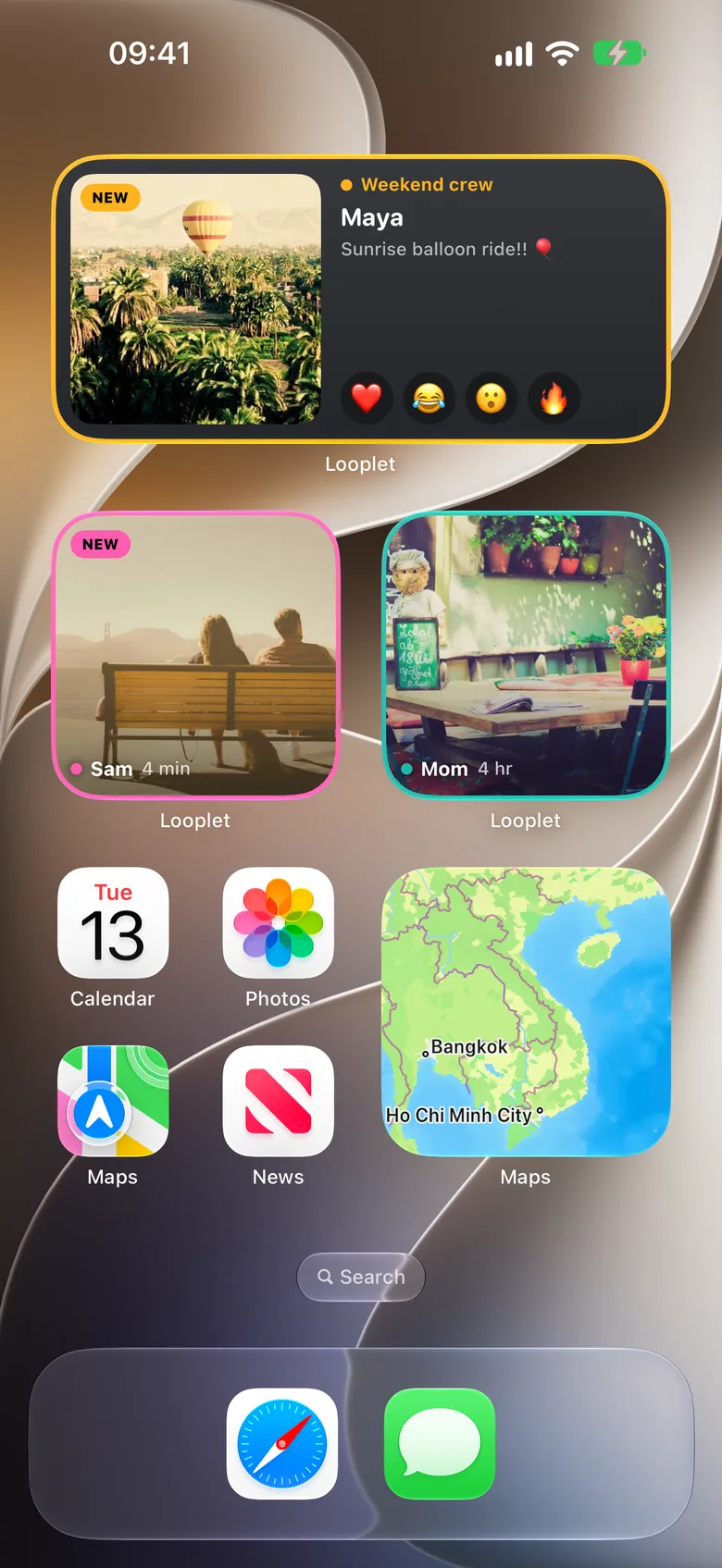
One widget per Loop
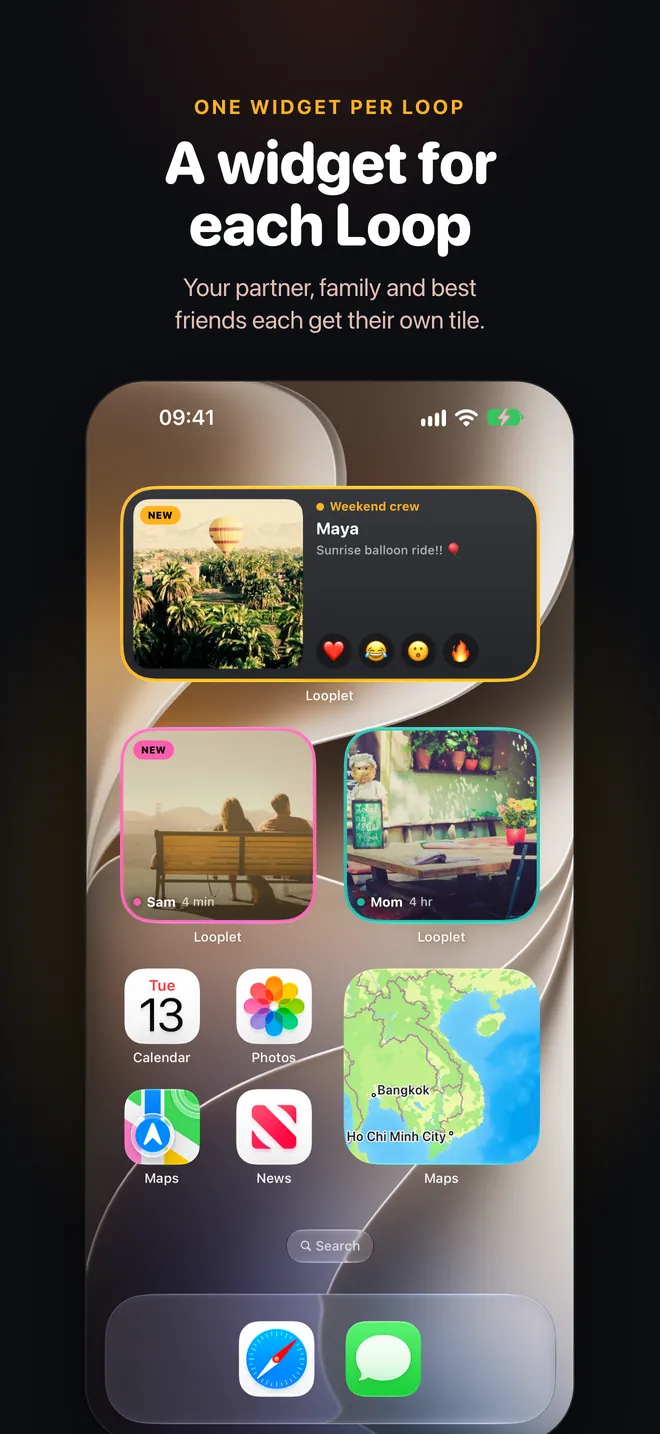
A separate widget for each Loop
Not one feed of everyone. Your partner, your family and your best friends each get their own tile on your Home Screen, so you always know whose moment you are looking at.
- Small, medium or large widgets
- Each tile framed in its Loop’s color
- On iOS 18, the widget asks which Loop to show
You choose
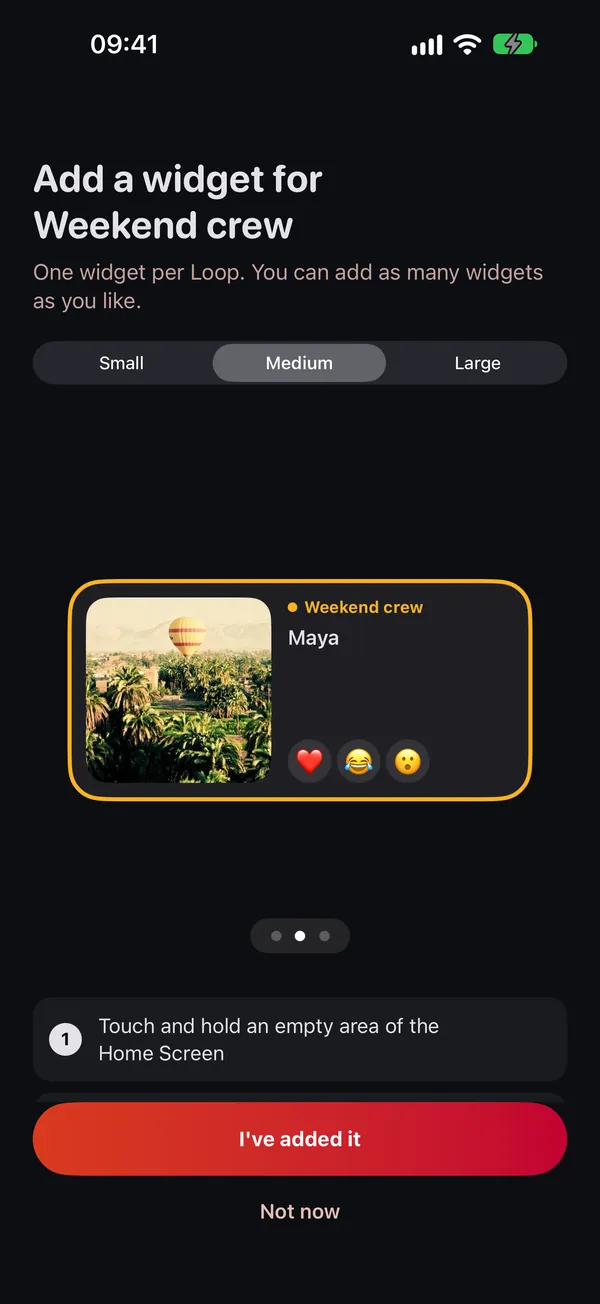
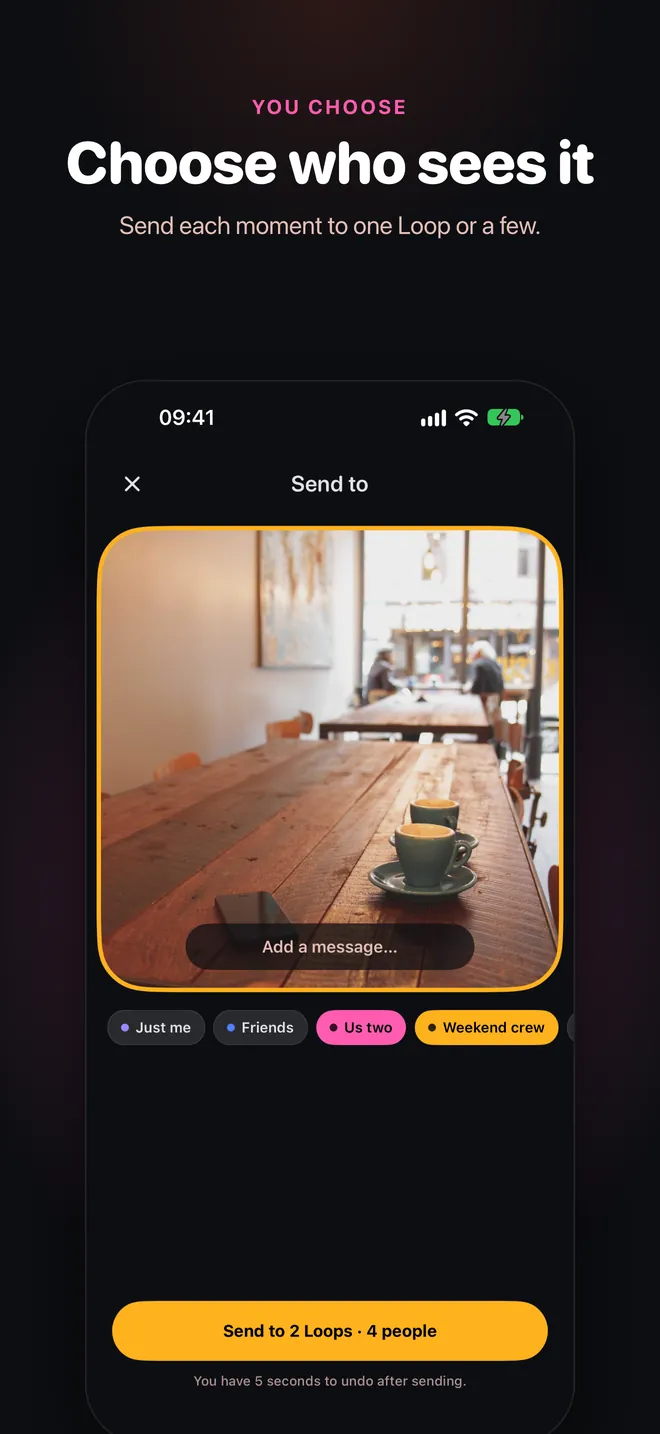
Pick who sees every photo
Before you send, tap the Loops that should get it: just your partner, the family, or a few at once. Nobody outside those Loops sees it.
- Send to one Loop or several
- Add a caption
- A few seconds to undo after sending
Private by design
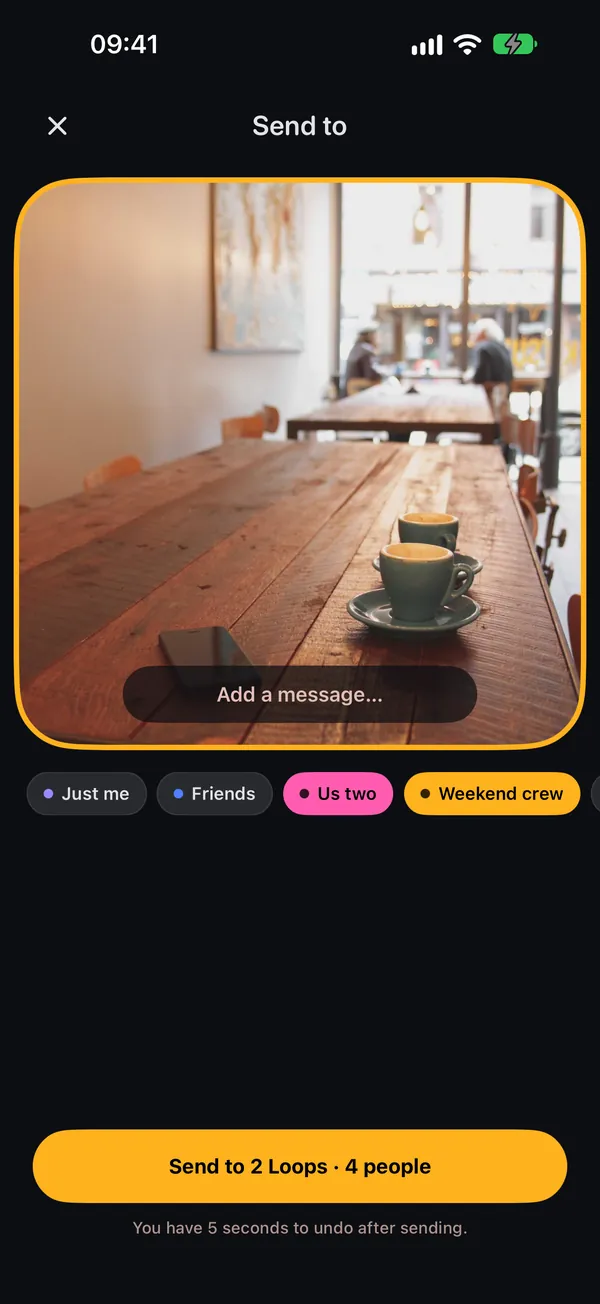
Small circles, not followers
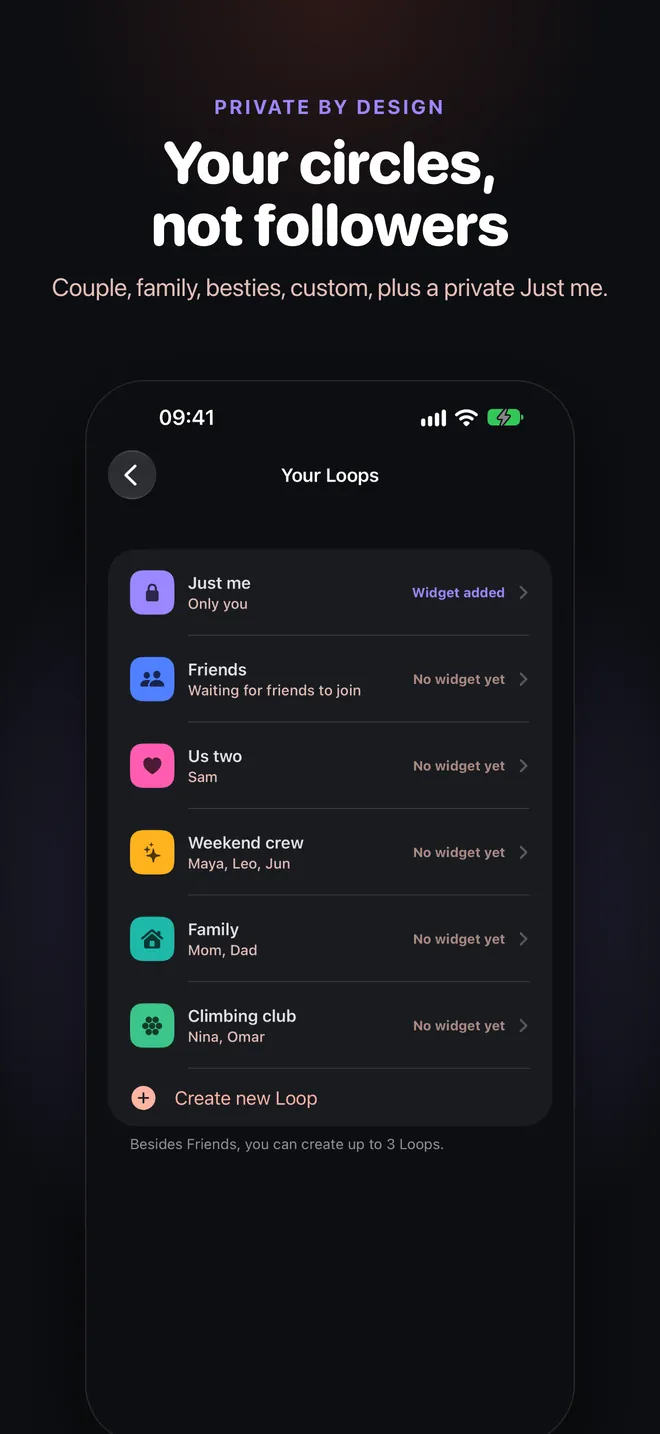
Loops have clear, small audiences: Couple for two, Besties, Family and your own custom Loops. Everyone also has a private Just me Loop that only you can see.
- Couple 2 · Besties 10 · Family 20 · Friends 20
- No public profiles or follower counts
- Just me is backed up privately
Memories
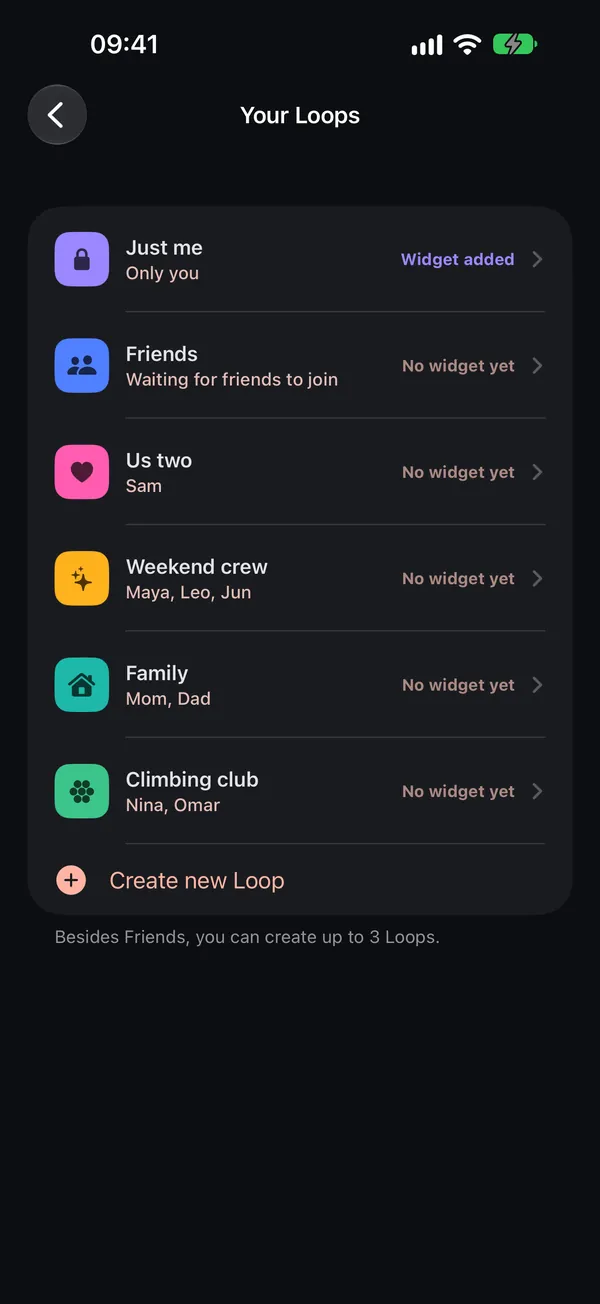
Memories found on your iPhone
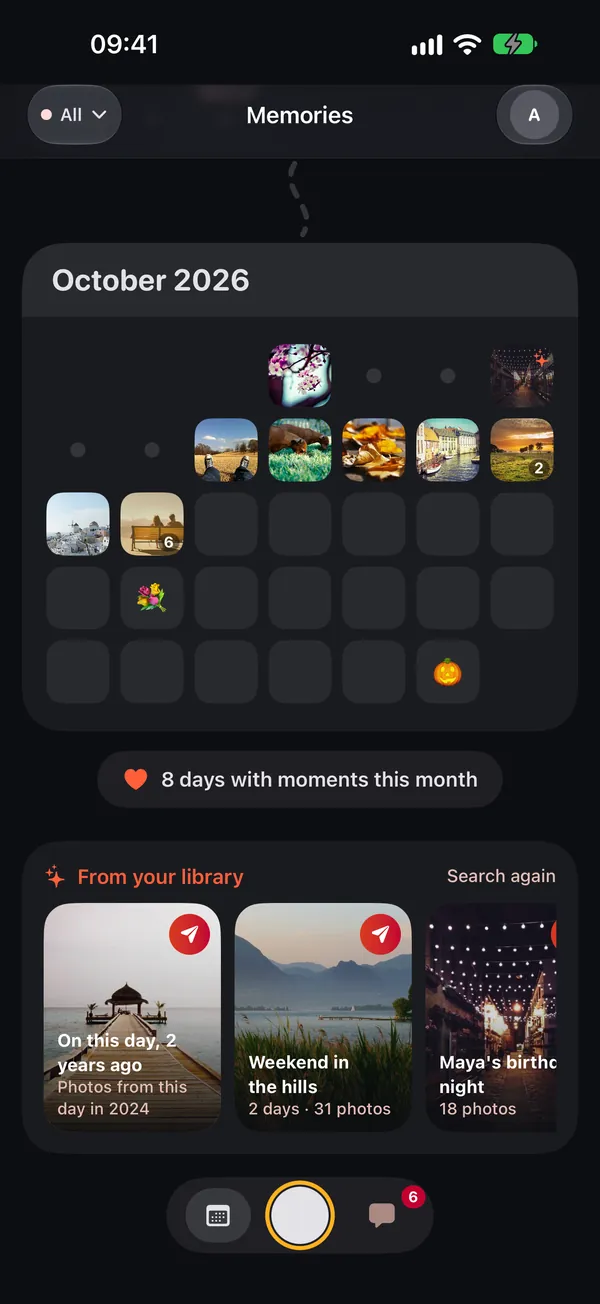
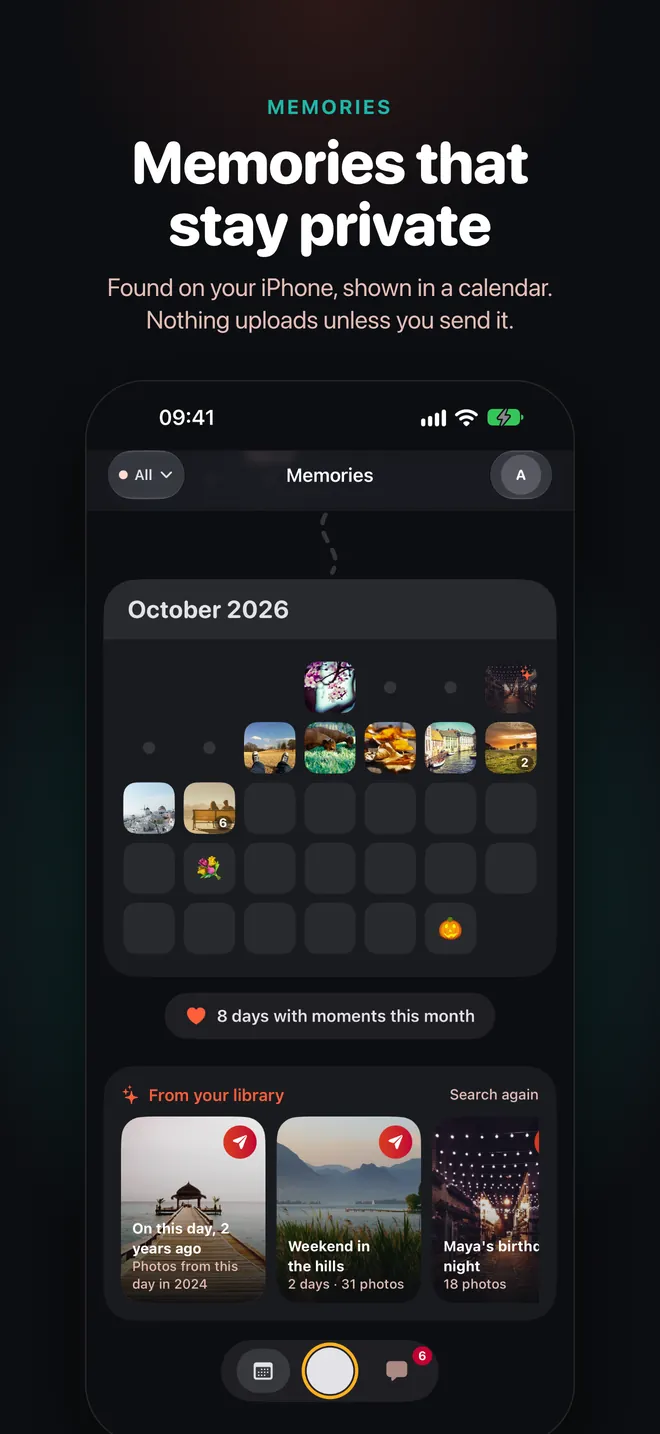
Looplet finds moments in your own photo library and lays them out in a calendar, right on your device. Nothing uploads unless you choose to send it.
- “On this day” moments from past years
- A calendar of your moments, month by month
- Works privately, on-device
Richer replies
Answer with your voice, or a tap
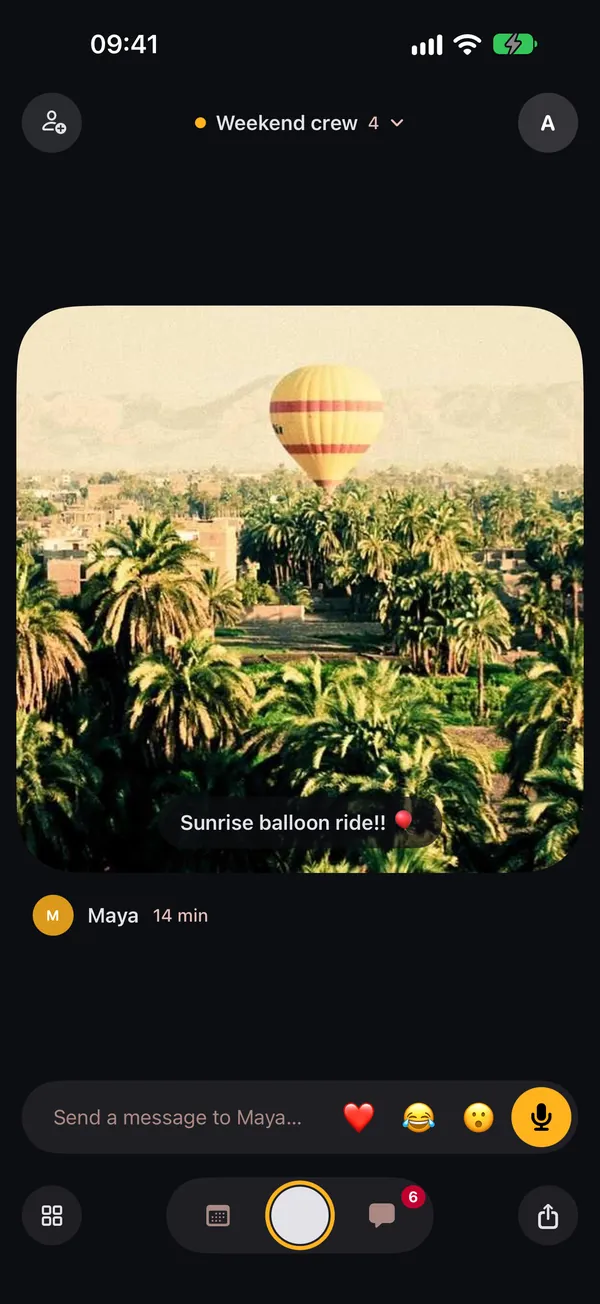
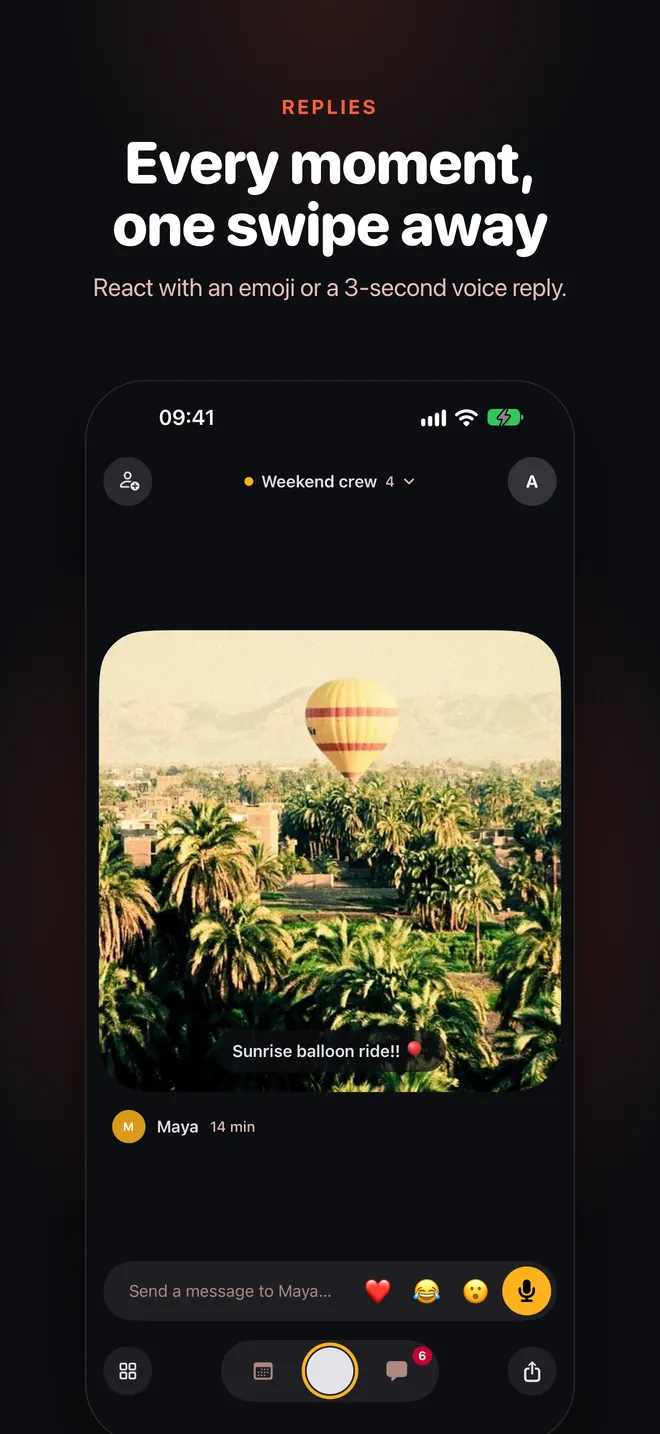
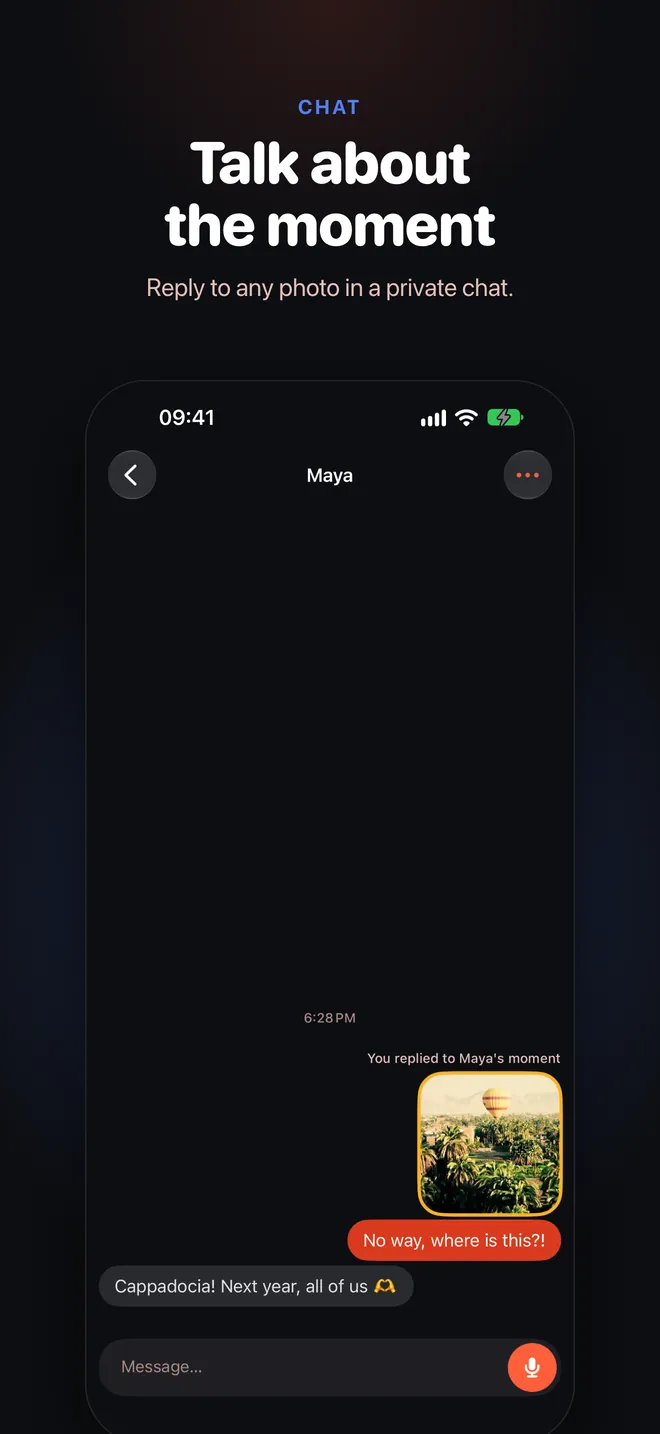
Swipe up through a Loop’s moments and reply with a 3-second voice note, an emoji, or a message. You can even react with an emoji straight from the widget.
- 3-second voice replies
- Emoji reactions from the widget
- 1:1 chat with optional live typing
How it works
Three steps to your people
- Step 1
Create or join a Loop
Start a Couple, Besties, Family or custom Loop and share its invite link or 6-character code. Got an invite? Tap the link, or enter the code in the app.
- Step 2
Add a widget per Loop
Touch and hold your Home Screen, add a Looplet widget, and pick the Loop it shows. Add one for each Loop you want to see at a glance.
- Step 3
Snap and send
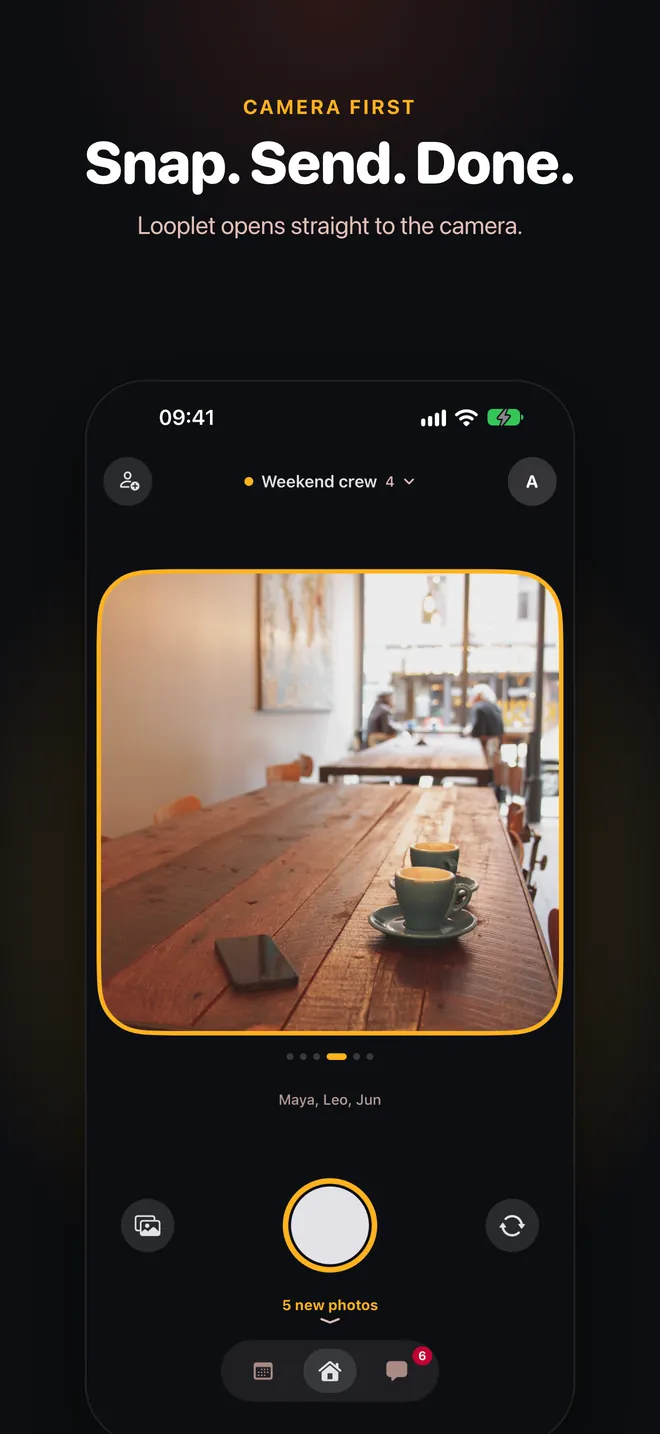
Looplet opens straight to the camera. Take a photo, choose the Loops that should see it, and it lands on their Home Screens.
A look inside
See it on iPhone
Privacy
Private by default
Plainly: who sees what, and what stays on your phone.
Memories stay on your iPhone
Memories are found in your photo library on your device. Nothing uploads unless you send it.
Contacts never leave your phone
Looplet reads Contacts on your iPhone only to help you pick who to invite. They are never uploaded.
Photos go only where you send them
Each photo is delivered only to the members of the Loops you pick. No public feed, no followers.
Just me, backed up privately
Photos in your Just me Loop are backed up so they survive signing out, and only you can see them.
Delete your account in the app
Me → Delete account removes your account and what you’ve shared. No email needed.
No ads
Looplet doesn’t show ads, doesn’t sell your data and doesn’t use third-party ad tracking.
FAQ
Questions, answered
What do I need to use Looplet?
An iPhone with iOS 17 or later, and a Sign in with Apple account. Looplet is made for iPhone.
How many people can be in a Loop?
It depends on the kind of Loop: Couple is for 2 people, Besties and custom Loops up to 10, Family and Friends up to 20. Just me is only you. Besides Friends, you can create up to 3 Loops of your own.
Who can see my photos?
Only the members of the Loops you choose when you send. Photos in Just me are visible to you alone. There are no public profiles, followers or public feed.
How does the widget work on iOS 17 and iOS 18?
Widgets work on iOS 17 and later, in small, medium and large sizes, one per Loop. On iOS 18 and later, iOS asks which Loop to show as soon as you add the widget. On iOS 17, add the widget, then touch and hold it and choose Edit Widget to pick the Loop.
How do invites work?
Each Loop has an invite link (loopletplus.pages.dev/i/…) and a 6-character code. Share the link from the app, or pick people from Contacts, which stay on your iPhone. Your friend taps the link to open Looplet, or enters the code under “I have an invite link”.
How do I delete my account?
In the app, open Me, scroll down and tap Delete account, then confirm. You can also request deletion by email.
Which languages does Looplet speak?
Looplet is available in 19 languages, including English, Spanish, French, German, Portuguese (Brazil), Japanese, Korean, Chinese (Simplified and Traditional), Hindi, Indonesian, Thai, Vietnamese and more. You can switch the language inside the app.
Can I turn off live typing in chat?
Yes. When “Show text while typing” is on, the person you chat with sees your words as you type. Turn it off in Me and they only see “typing…”.
Something else? Write to tuyetnt6134@icloud.com.

Put your people on your Home Screen
Start a Loop, send the link, and see their next moment right on your Home Screen.
Coming soon to theApp Store